At Vodia, we know it’s not just the quality, flexibility, integrations with world-class business software, and extensive feature suite that matter to IT departments and MSPs worldwide. Reliable support matters too.
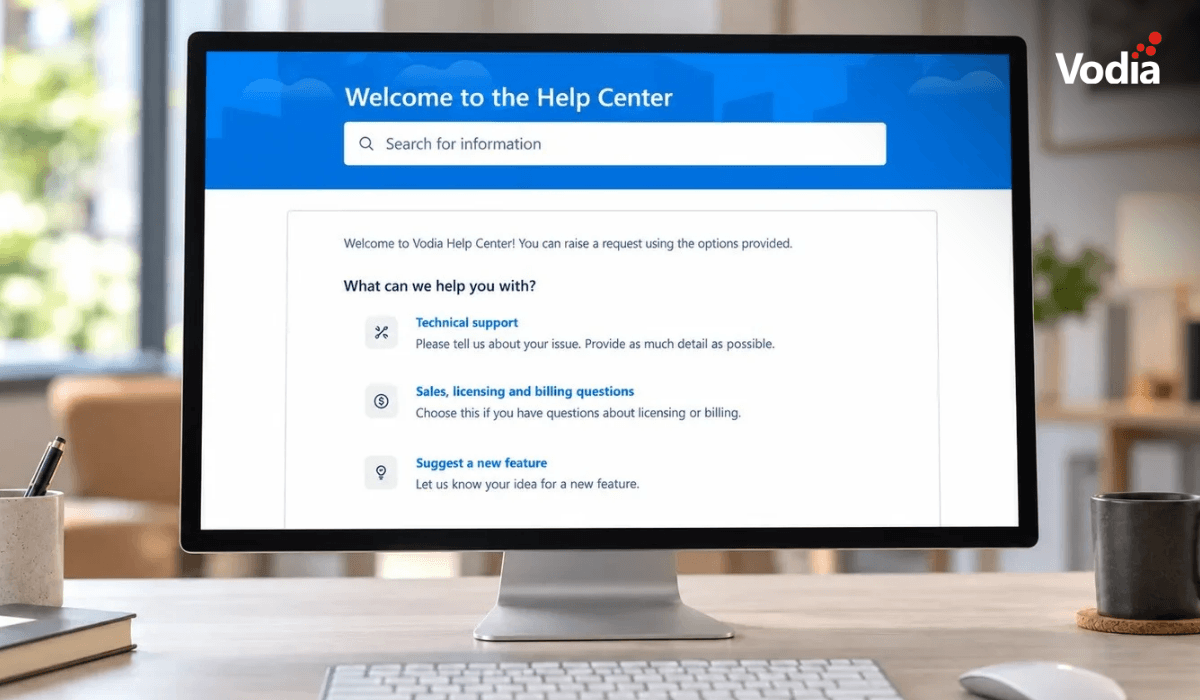
In June of 2025 we announced that partners with valid license keys can open a detailed ticket in our new Jira portal, the Vodia Help Center. It provides partners with technical support and assistance to sales, licensing, and billing questions, alongside links to Vodia documentation and the Vodia PBX API. We describe it as “everything Vodia” in one place.
To improve our partners’ experience in the Vodia Help Center, we’d like to provide step-by-step instructions for submitting individual support tickets, helping our support team help you.
How to Submit a Support Ticket with Vodia
Step 1: Open the Help Center and choose a request type
Go to the Vodia Help Center and sign in. The landing page offers three request types:
- Technical support: for issues with your PBX, phones, or Vodia apps.
- Sales, licensing, and billing questions: for licence or invoice queries.
- Suggest a new feature: for product ideas.
Select technical support to raise a support ticket. Before you submit, try the search bar or the related resources section - these link to Vodia documentation and the Vodia API reference, where you may find answers to common questions.
Step 2: Describe the issue
Summary (required): provide a short, specific title. “Inbound calls from trunk X fail with 488,” for example, is far more useful than “calls not working.”
What do you need help with? (required): describe the problem in detail, including:
- What you expected to happen and what actually happened
- When it started and how often it occurs
- Any recent changes, such as an upgrade, configuration change, or new trunk or device
- Example call details: date, time, time zone, caller, callee, and extension
Step 3: Attach diagnostic files
Drag and drop files, paste screenshots, or use “Browse.” Where applicable, please provide:
- A PCAP capture of the affected call or registration
- Screenshots of the error or configuration
- Syslog output covering the time of the issue
These files help our support team investigate the issue and reduce the need for follow-up questions. If you’re unsure how to capture them, check the Vodia documentation.
Step 4: Set the business impact
Choose the option that matches the real-world effect:
| Level |
Meaning |
| High |
Major widespread issues |
| Medium |
Partial loss of functionality |
| Low |
Minor impact |
| No Impact |
No operational impact |
Please note: the form defaults to “No Impact.” If your issue affects users, change this to help our team access and prioritize your request accurately.
Step 5: Add a documentation link (optional)
If you’ve already read a relevant page on our documentation, please paste the specific URL. This tells our support team which guidance you’ve consulted and helps us improve the documentation.
Step 6: Choose with whom to share the ticket
The “Share with” field controls which organisation can see the ticket. This is normally pre-filled with your company information, so check that the selected organization is correct before submitting.
Step 7: Fill in your system details
Complete the required fields accurately to reduce follow-up questions and further back-and-forth.
- PBX Operation System: CentOS, Debian/Ubuntu, Windows, AlmaLinux, or Rocky Linux
- PBX Version: the exact version number (find it in the PBX web interface)
- PBX License Key: your license key, so we can verify your entitlement
- Active Extensions: select the range that matches your deployment
- Paid or Trial Subscription: select whichever applies
- Region: Americas, Europe, Asia, or Australia
- Vodia App Issue?: select “Yes” if the problem relates to a Vodia app (such as VodiaConnect or the Vodia web phone), or “No” otherwise
Step 8: Answer the HIPAA question
The form asks whether handling your ticket could involve a potential data breach of protected health information (PHI).
Select “Yes” if your attachments, call recordings, logs, or descriptions could contain PHI. Where possible, redact patient information from files before uploading. If you’re unsure whether your ticket could contain PHI, select “Yes” and explain your concern without including sensitive details.
Step 9: Send
Review the form and click “Send.” You’ll receive a confirmation, with replies sent via email and available in the portal, where you can add comments or further attachments.
Five tips for faster resolution
- One issue per ticket: This keeps troubleshooting focused.
- Include relevant captures up front: PCAP captures and syslog output are useful for investigating SIP and media issues.
- Be precise about timing: Include exact dates, timestamps and the time zone so we can identify the relevant events.
- Set the impact honestly: This helps our team assess and prioritize your request.
- Reply on the same ticket: Avoid opening a new ticket for the same problem.
At Vodia, we want to help our partners succeed. Providing clear details and relevant diagnostic files when you submit a ticket helps our support team understand the issue and investigate it more efficiently.
Ready to submit a request? Visit the Vodia Help Center or get in touch at sales@vodia.com or +1 (617) 861-3490.
.svg)