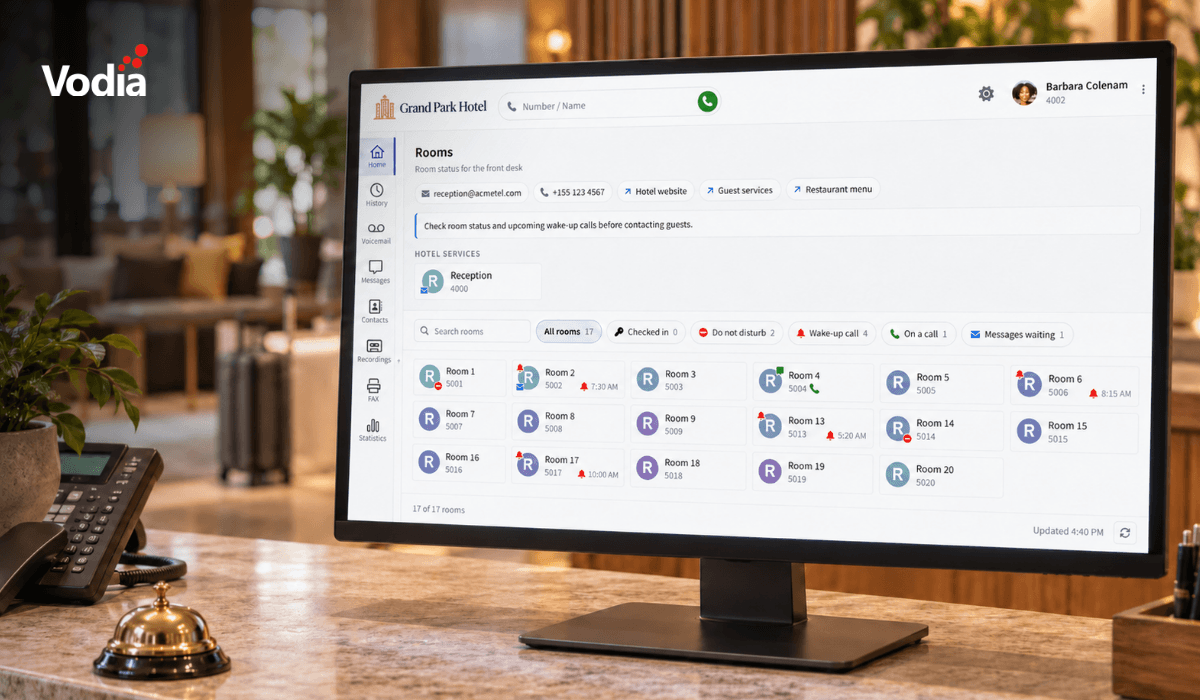
With the release of Vodia V70 and its subsequent updates, the Vodia PBX continues to set the standard for cloud phone systems. V70 continues the evolution of our PBX, with enhancements that make it easier to deploy, easier to manage, and easier to use. It introduces a new guided setup experience, context-aware AI assistance in the Admin Portal, a refreshed User Web Portal, a new directory panel with quick links and notes, and backend enhancements across provisioning, troubleshooting, call handling, device support, registration management, and platform reliability.
If you’re using another PBX, and you want to ease into the world of Vodia, our migration tool helps reduce the manual work involved in making the switch.
What is a migration tool?
A PBX migration tool is a software utility that helps transfer configurations and data from a legacy or third-party phone system to another cloud, UCaaS (Unified Communications as a Service), or on-premises platform. The information transferred depends on the tool and the source system.
Why not just start over?
You don’t have to rebuild everything from scratch! You’ve already invested your organization’s resources into your phone system, and a migration tool can help bring key parts of that setup to a new platform.
The benefits include:
- Data transfer: Bring across key configuration data, including extension numbers, user details, ring groups, queues, and basic auto-attendant settings.
- Reduced manual work: Automated configuration mapping reduces the need to recreate supported settings individually.
- Speed: Importing supported objects in one pass helps streamline setup, leaving your team to focus on the configuration that needs review or manual completion.
Migrate to Vodia from 3CX®*
The Vodia PBX migration tool currently supports backup-based migration from 3CX® exclusively. It detects the format from the uploaded file, so there’s no need to select the source platform from a dropdown menu.
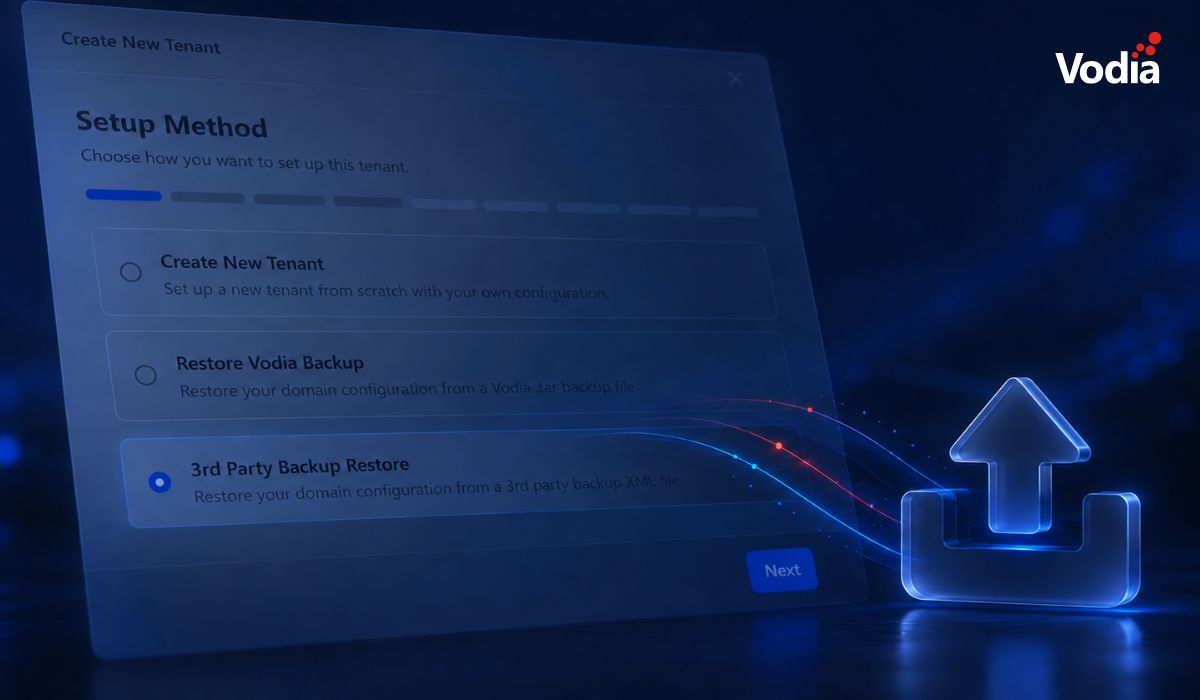
To begin, create a tenant in the Vodia Admin Portal and select “3rd Party Backup Restore.” This built-in option currently supports importing 3CX® backups.
The tool focuses on reducing the repetitive work involved in migration. Whether you’re bringing across 10 extensions or 1,000, importing their details saves you from entering each one manually. Core system settings typically need to be configured only once, so these remain part of the setup and review process. Some settings and call-routing logic still require manual configuration, but importing the supported data helps you get there faster.
CSV import from other platforms
Vodia also supports importing extension data via CSV from the following platforms:
- Avaya IP Office
- Broadsoft
- FreePBX
- Metaswitch
- NEC
- RingCentral
Export your extension data to CSV, prepare it in the format required by Vodia, and import it to simplify setup.
What the 3CX® migration does
The Vodia PBX migration tool guides administrators through eight stages:
Upload → Domain → Users → Ring Groups → Queues → Devices → IVR → Review
In one pass, the tool creates the following objects using data from the backup:
| Object |
Fields migrated |
| Tenant/domain |
Display name, primary (DNS) name, country code (all three are editable before commit) |
| Extensions |
Number, first name, last name, email address, voicemail PIN, SIP password |
| Ring groups |
Number, name, member extensions, ring time |
| Queues (ACD) |
Number, name, agent list |
| Desk phones |
MAC address, vendor, model, assigned extension, and device name are all written into provisioning |
| Auto-attendant (IVR) |
Number, name, and timeout |
Two things to know about migration:
- Review before import: Every step after Domain shows a read-only preview table of the objects to be created, while a live progress screen tracks each phase during the import.
- Automatically generated avatars: Initials-based avatars are generated for extensions, ring groups, queues, and IVRs - accounts that already have a picture are skipped.
The Vodia PBX migration tool recognizes device vendor information for Aastra, Alcatel, Avaya, Cisco, Dinstar, Fanvil, Gigaset, Grandstream, Htek, Mitel, Panasonic, Poly, Snom, Unify, and Yealink. See our supported phones for model compatibility.
What the Vodia PBX migration tool does not migrate
The migration tool transfers the configuration listed above, but some parts of your existing setup require manual configuration or are not transferred.
| Not migrated |
What this means |
| SIP trunks / VoIP providers |
Trunks and gateways need to be configured manually after import. |
| IVR call routing |
The auto-attendant’s number, name, and timeout are imported. Key-press menus and their destinations need to be rebuilt. |
| Audio prompts |
Greetings, menu recordings, and music-on-hold are not transferred. |
| Voicemail messages, call recordings, call history / CDRs |
These are not transferred by the tool. |
| Most tenant-level settings |
Around 27 tenant-level settings are read from the backup, including feature codes, mailbox limits, recording retention, E911, and log level. Only the display name, primary name, and country code are applied, however; the remaining settings need to be configured manually. |
| Non-numeric IVR accounts, devices without a MAC |
These are excluded from the import. Check the preview tables for missing accounts or devices. |
Before putting the new system into service, review the imported configuration, complete the remaining setup, and test your call flows and devices.
A commitment to innovation
At Vodia, we continue to develop our feature-rich PBX to make business communication easier to deploy, manage, and use. Our platform brings together AI functionality, Microsoft Teams integration, WhatsApp, and integrations with business software.
If you’re looking to make the switch from 3CX® or another PBX provider to Vodia, we’d love to help you plan the move and understand your import options. Get in touch at sales@vodia.com or +1 (617) 861-3490.
*3CX® is a registered trademark of its respective owner. References to 3CX® are solely for identification and to describe migration compatibility. Vodia is not affiliated with, sponsored by, or endorsed by 3CX®.
.svg)