.svg)


Your Vodia extension, right on your desktop
Make and receive business calls, manage active conversations, message colleagues, check voicemail and keep contacts close from one connected Vodia workspace. Open the Vodia Softphone in your browser, install it as a Progressive Web App (PWA) or use the dedicated Windows app.
One softphone. Three ways to use it on your desktop.
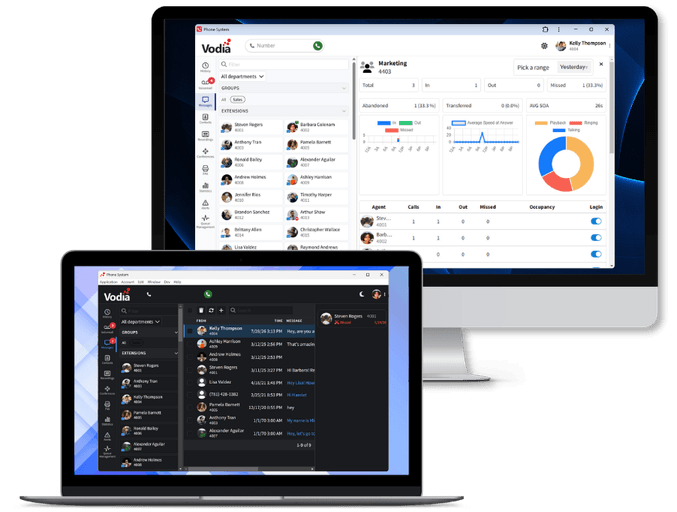
Choose how you want to use the Vodia Softphone
The Vodia Softphone brings calling, messaging, voicemail, contacts and extension settings together in the Vodia User Portal. Use it directly in a browser or bring it to your desktop through the recommended PWA or the Windows app.

Progressive Web App (PWA)
Install the Vodia User Portal from Safari, Chrome or Microsoft Edge and open it in its own application window. The PWA requires no separate executable or app-store installation.



Web browser
Sign in to the Vodia User Portal and make and receive calls without installing an application. This is the quickest way to access the softphone from a supported browser.

Windows app
Install Vodia Phone from Microsoft Store for a dedicated Windows experience with desktop pop-ups, stronger native notifications and direct access to Windows audio devices.

Recommended for most users
Why Vodia recommends the PWA
The PWA delivers the familiar Vodia Softphone in a standalone window while keeping deployment simple. It requires no separate executable or app-store installation and reduces compatibility issues after PBX upgrades.
Keep calls, messages and follow-up in one place
Move between conversations, recent activity and customer information without switching between separate communication tools. Vodia keeps the context around every call within the same desktop workspace.
Call history
Review and return incoming, outgoing, missed and abandoned calls.
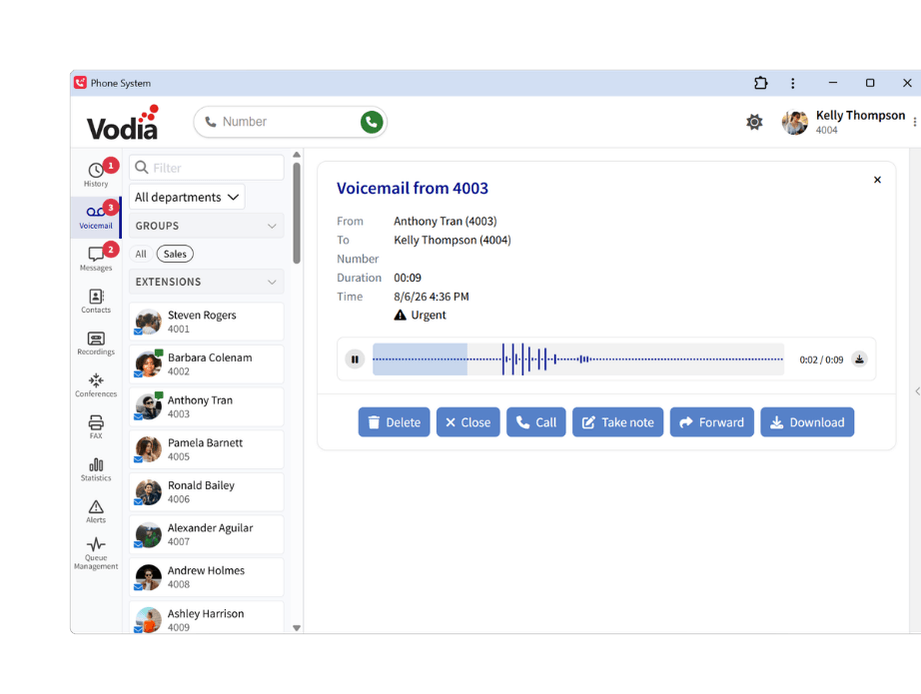
Voicemail and fax
Access voicemail, transcriptions and received faxes from one mailbox.
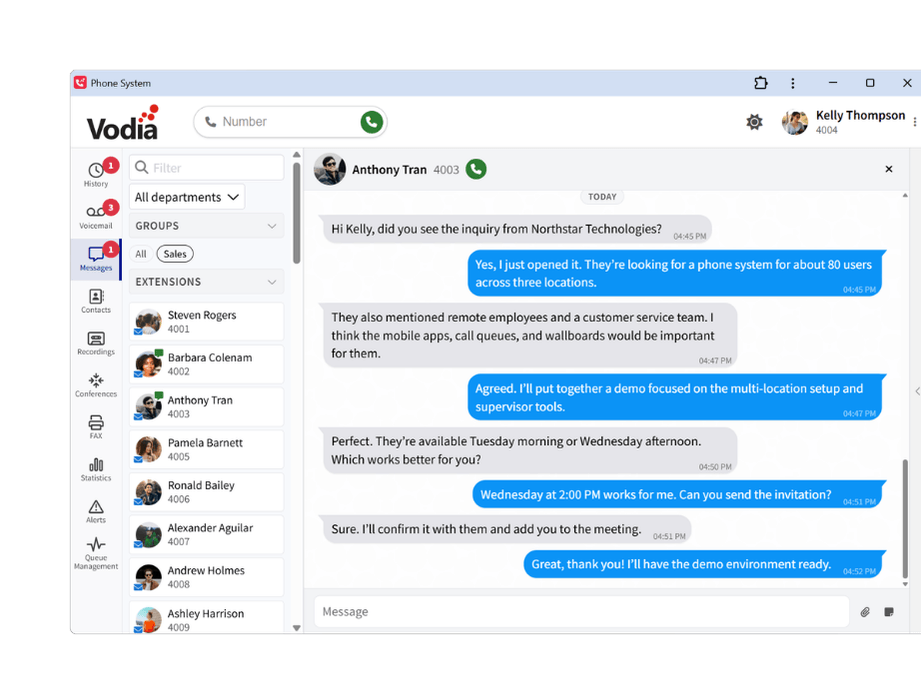
Messaging
Chat, share files, add notes and start calls from one conversation.
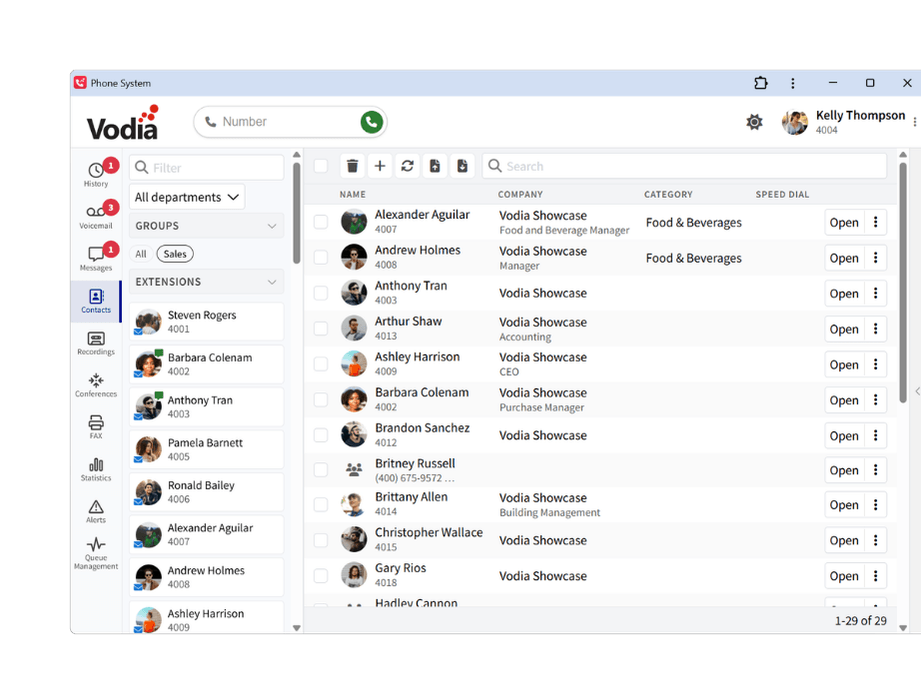
Contacts and presence
Find contacts and check availability before calling or transferring.
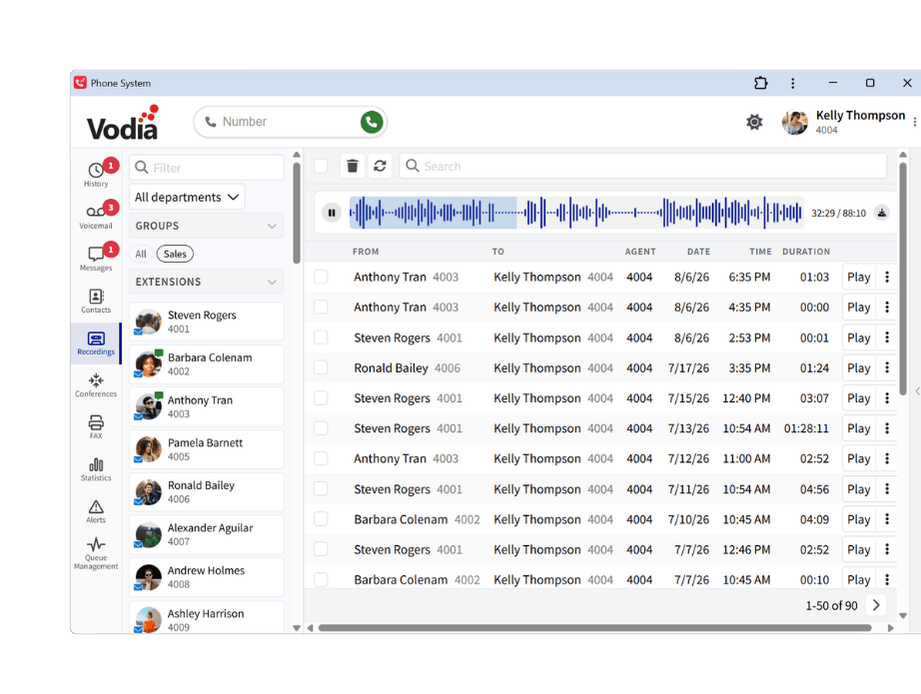
Recordings
Play recordings, review call details and add notes when permitted.
Activity feed
See calls, voicemail, faxes, messages and notifications in one feed.
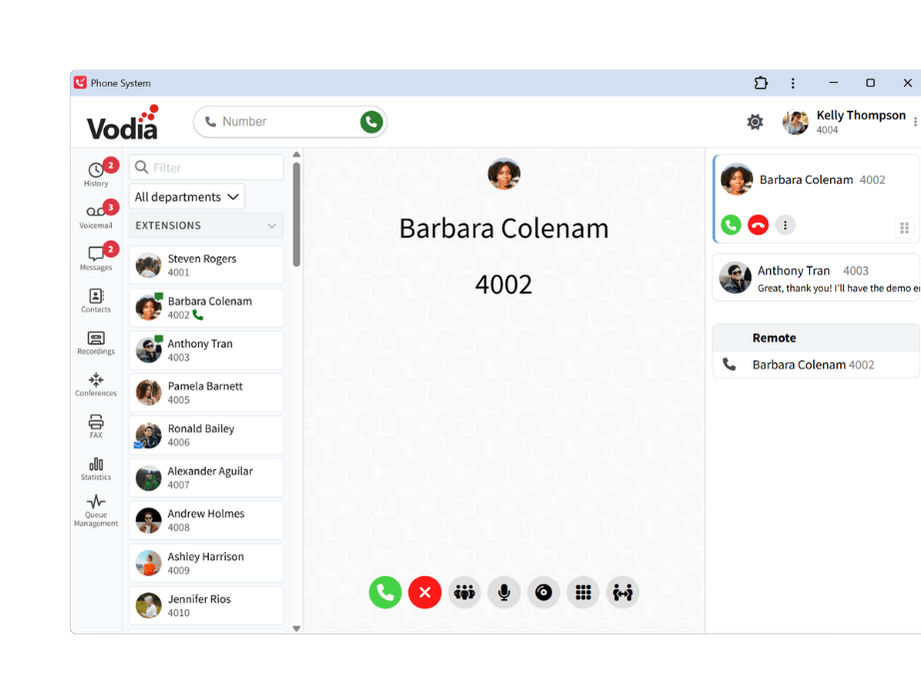
Keep every conversation under control
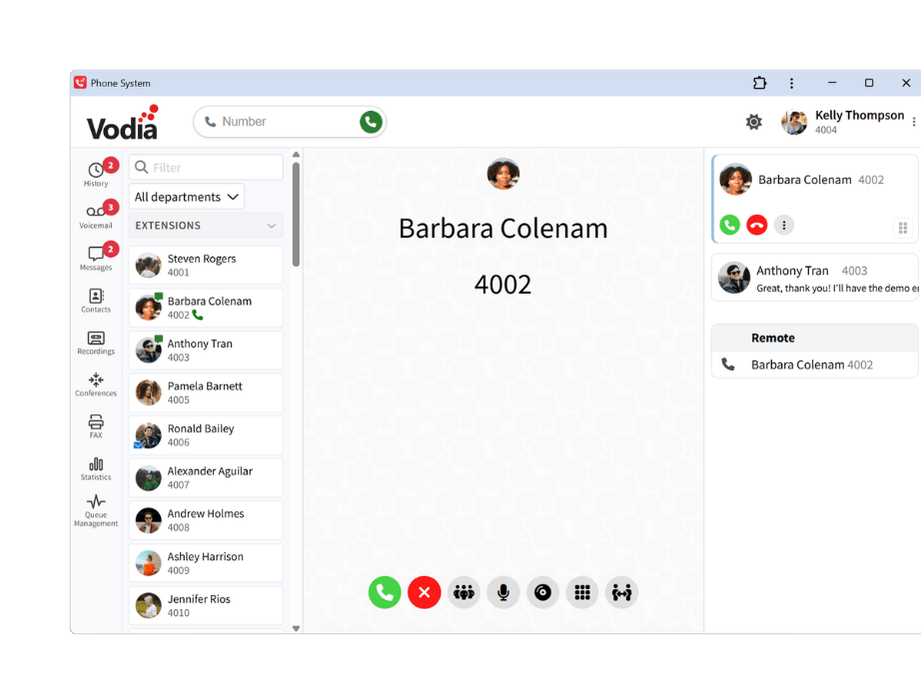
Place and receive calls through your Vodia extension, then manage the conversation from a persistent call panel with the controls you need close at hand.

Audio and video calling
Make calls from the dial field or a contact and answer incoming calls with audio or video when available.

Hold, mute and keypad
Pause and resume calls, mute your microphone and use the dialpad for IVR input without leaving the active call.

Transfer and bridge calls
Send a caller to another extension or number, or connect two active calls when a conversation needs to move.

Headset and remote answer
Use compatible headset controls to answer or reject calls, or take an incoming call on another connected device.

Notes and call categories
Add notes during a call and categorize queue conversations to keep useful context available for reporting and follow-up.

Recording controls
Start or stop an ad hoc recording from the active call when recording is enabled and permitted.
Manage how your extension works
Update important call-routing, availability and device settings directly from the same workspace without relying on an administrator for every change.

Call forwarding
Forward all calls or define different destinations for busy, unanswered and unregistered calls, with optional schedules for specific days and times.

Do Not Disturb (DND)
Change your availability, add a reason and make your current status visible to colleagues.

Devices and notifications
Choose the microphone, speakers, camera, ringtone output and notification settings that fit your desktop setup.

Mailbox and profile
Manage voicemail greetings and notifications, update profile details and personalize regional and display preferences.
Make every phone number clickable in Windows
Vodia Hub is a lightweight Windows companion that stays available in the system tray and pairs with one Vodia extension. It connects everyday Windows workflows to the Vodia user portal or a registered desk phone, so users can act on calls without leaving the application they are working in.
Vodia Hub
Click to call from other applications
Click tel: links in Microsoft Outlook, CRM tools, browsers and other Windows applications to place the call through your Vodia extension.

See incoming-call screen pops
View caller and queue details in a desktop pop-up, then accept, reject, hold, resume or transfer the call from the panel.

Connect calls to existing workflows
Trigger a webhook, open a customer record or run a local command when a call arrives using the caller's number.
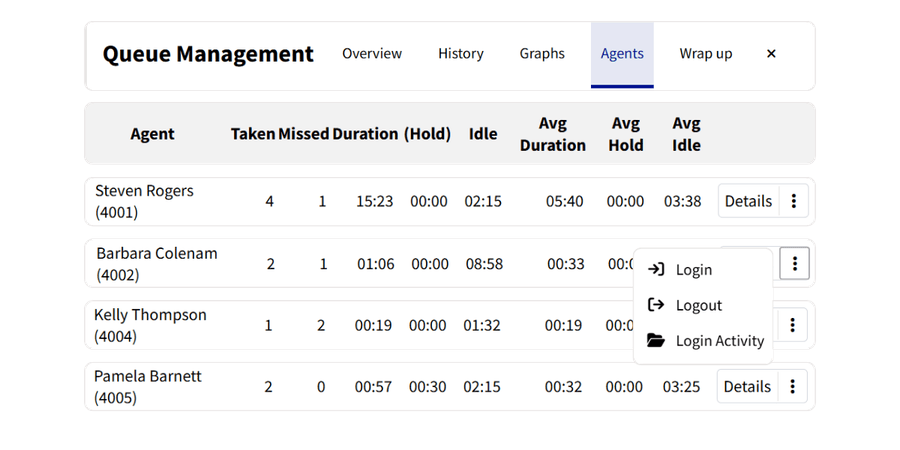
Keep queues and performance in view
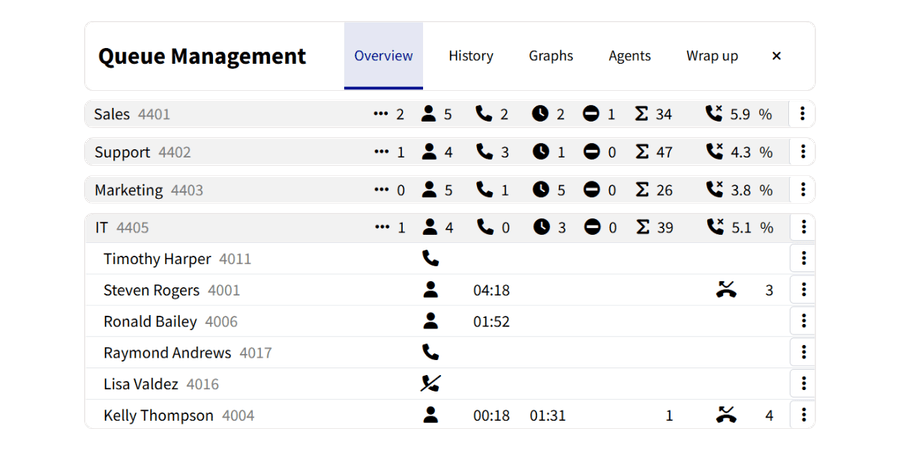
Users with the appropriate permissions can monitor live queue activity, review call handling and understand agent performance without leaving Vodia.
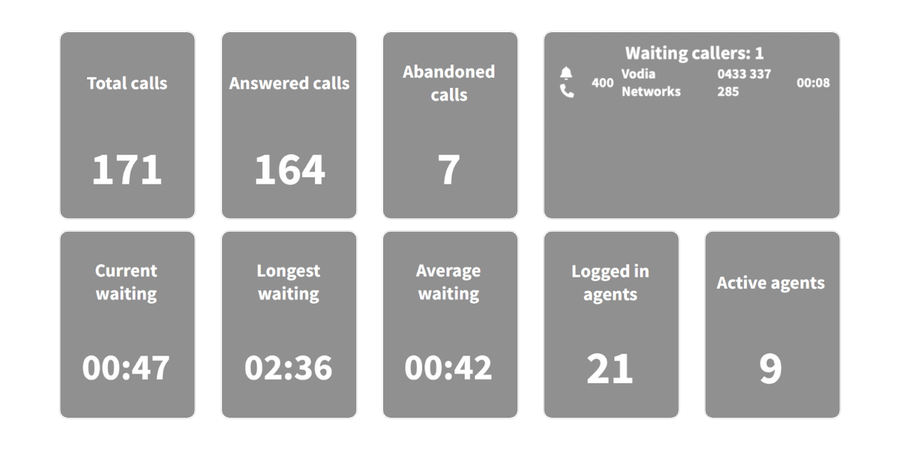
Live queue activity
See waiting callers, logged-in agents, active calls, idle agents and abandoned-call percentages across assigned queues.
Agent controls
Log agents in or out, change Do Not Disturb status and manage availability where your permissions allow it.
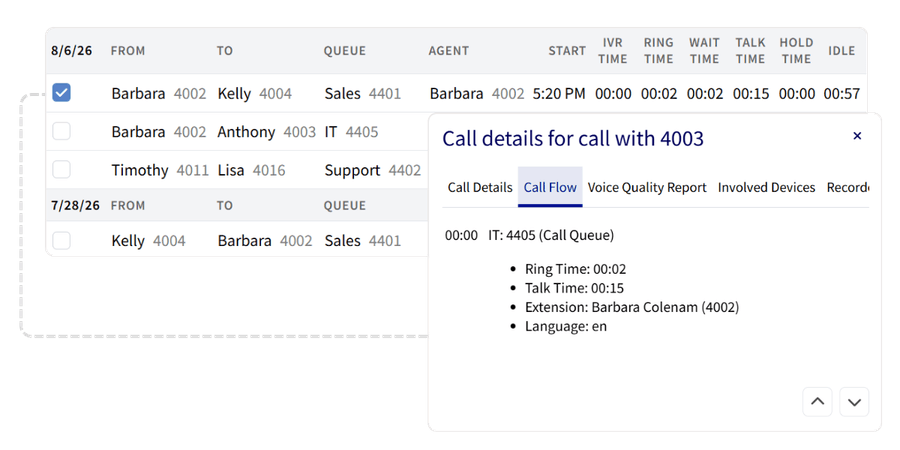
Call history and details
Review wait, ring, talk and hold times, follow transfer history, access recordings and export call data for further analysis.
Statistics and wallboards
Monitor user availability, call-quality scores and real-time queue performance through visual dashboards.
Start calling from your computer

Sign in to your Vodia PBX
Open the Vodia User Portal using the address and credentials provided by your administrator.


Choose your desktop experience
Install the recommended PWA from Safari, Chrome or Microsoft Edge, or download the Windows app from Microsoft Store.

Select your devices
Allow microphone access and choose your preferred headset, speakers, camera and ringtone output.
Deploying the Vodia PBX server on Windows?
The Vodia PBX Installer Wizard provides a faster way to deploy the server-side PBX on Windows. Select a supported PBX version, install the required files and libraries immediately or download them for later, then use the generated access information to log in. This installer is separate from the desktop softphone.
Windows PBX Installer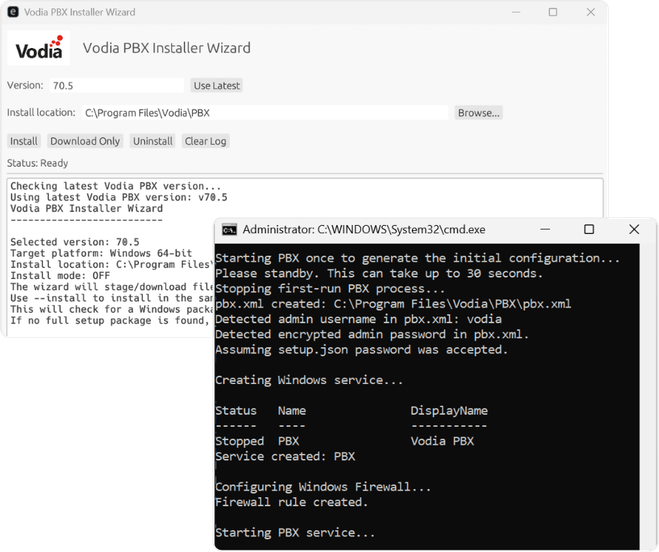
Bring your business phone to the desktop
Make and receive calls, manage conversations, access voicemail and messages, and keep contacts and queues close in your browser, through the Vodia PWA or with the Windows app.
Prefer to explore on your own? Launch a prepaid instance on:


