.svg)


Business calling,
made for Android
Take your Vodia extension wherever you work. Make and receive calls through your Vodia Phone System using your business number and identity. Incoming business calls use Android’s familiar calling experience, even when the app is running in the background.
Native Android calling. Bluetooth and Android Auto. Complete business call control.
Your business line works the Android way
The Vodia Android app integrates with Android Telecom Manager, bringing business calls into your phone’s native calling environment. Start calls from the Vodia app or the Android dialer and answer incoming business calls through the familiar Android calling interface.
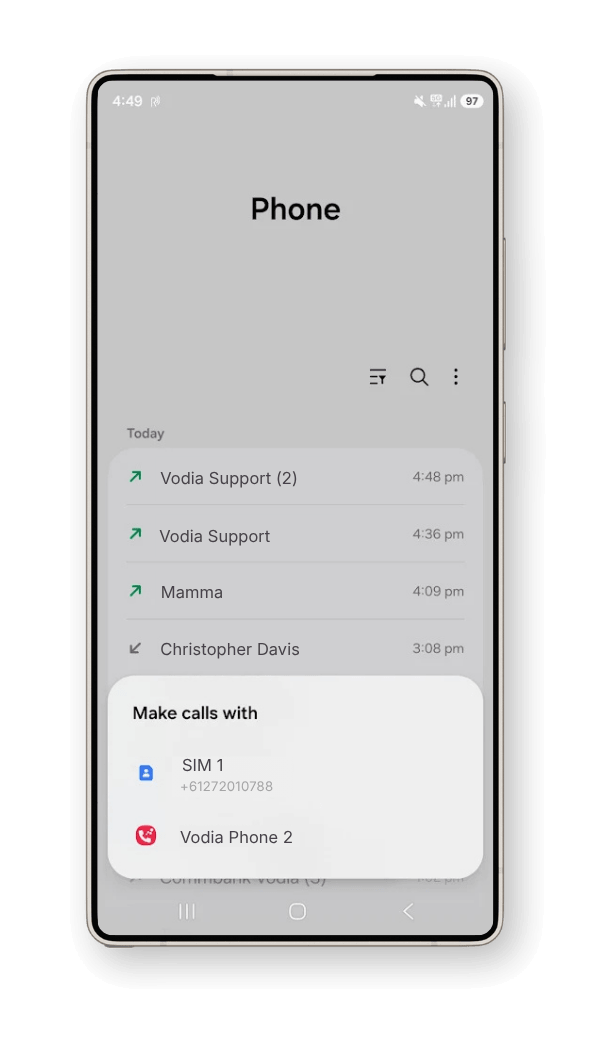
Call from the Android dialer
Dial a number from your phone, select your Vodia account and place the call through your business phone system. This also works when the Vodia app is closed.
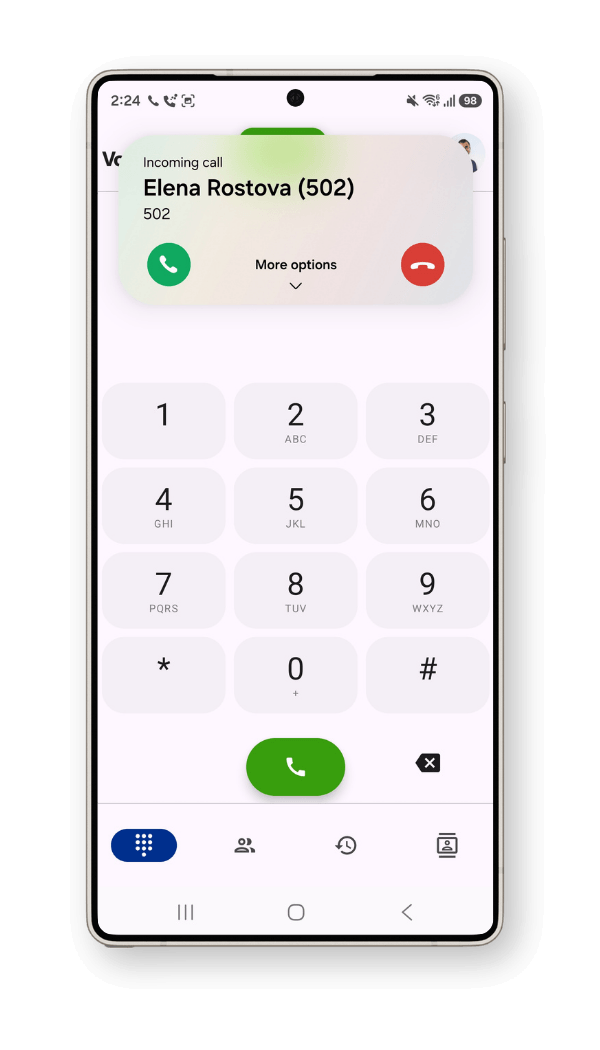
Receive calls in the background
Push notifications bring incoming business calls to your screen when the app is closed or your phone is locked.
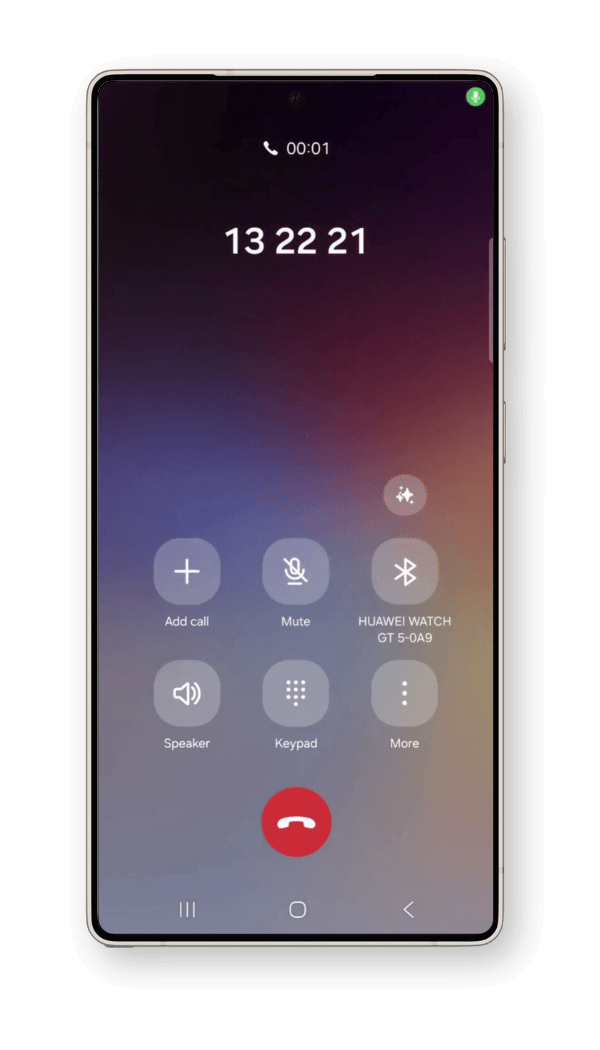
Bluetooth and Android Auto
Use compatible Bluetooth devices and Android Auto after enabling the required Android calling permission.
Keep your business communication in one place
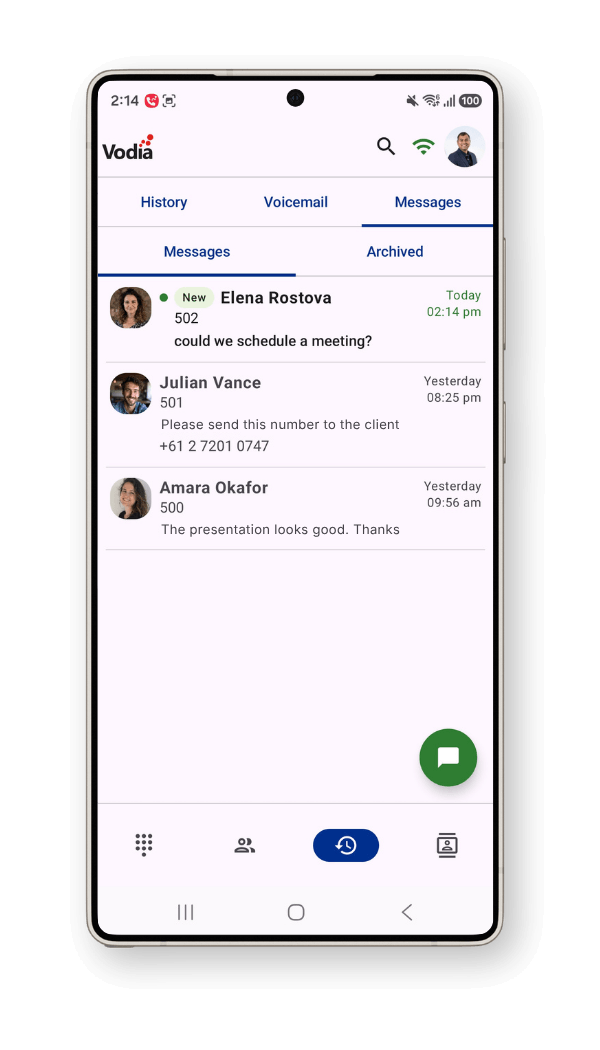
Move between calls, colleagues, voicemail, messages and contacts without switching between different business tools. Your recent communication activity remains connected to your Vodia extension.
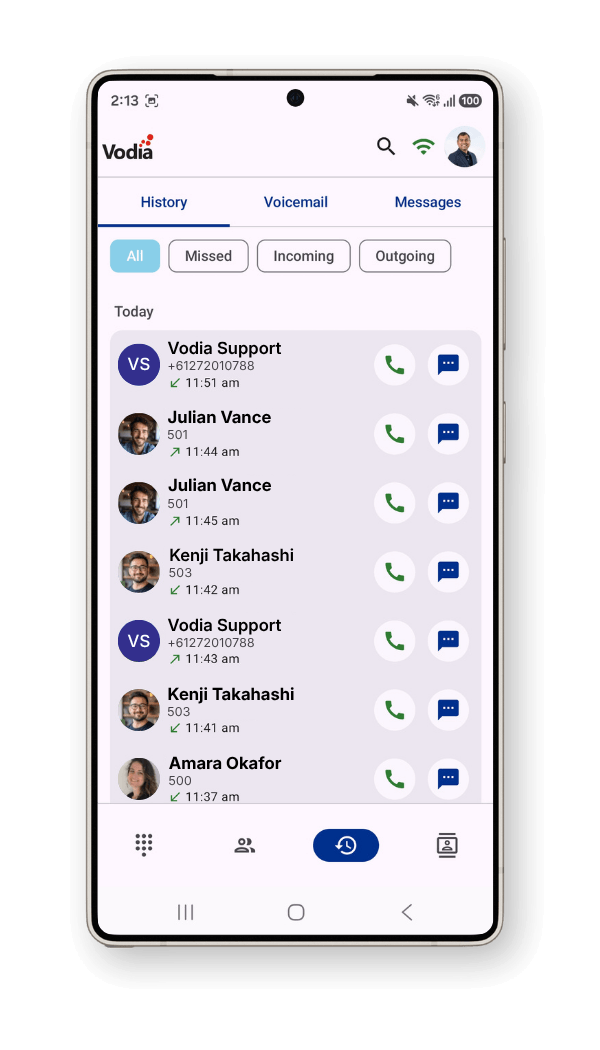
Call history
See recent incoming, outgoing and missed calls synced with your phone system, then call or message the contact again.
Voicemail and messages
Listen to voicemail, return calls, reply to messages and archive previous conversations directly from the app.
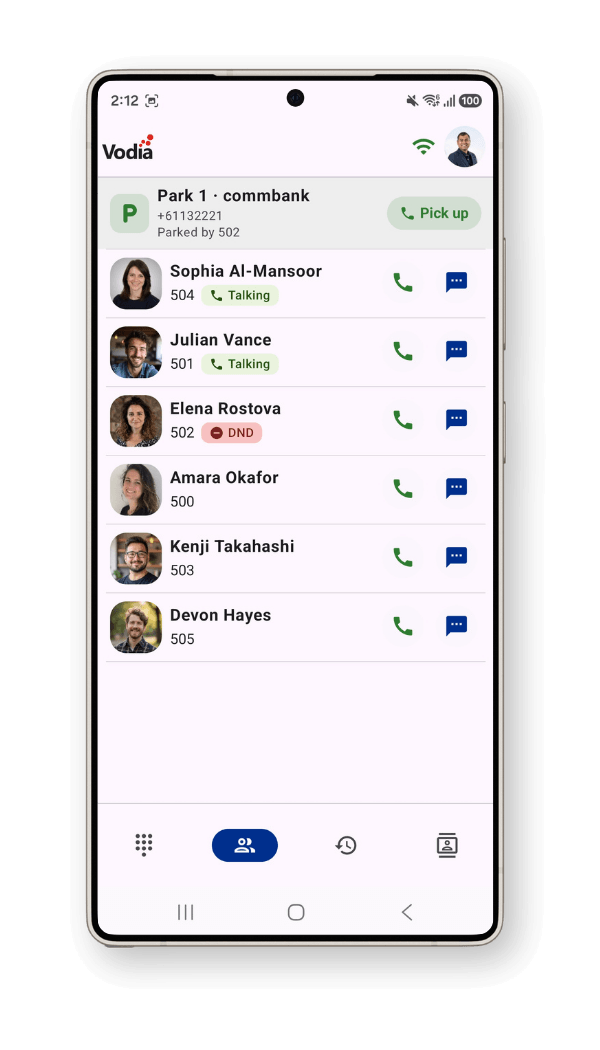
Extension activity
See when colleagues are on a call or using Do Not Disturb, then call or message their extension.
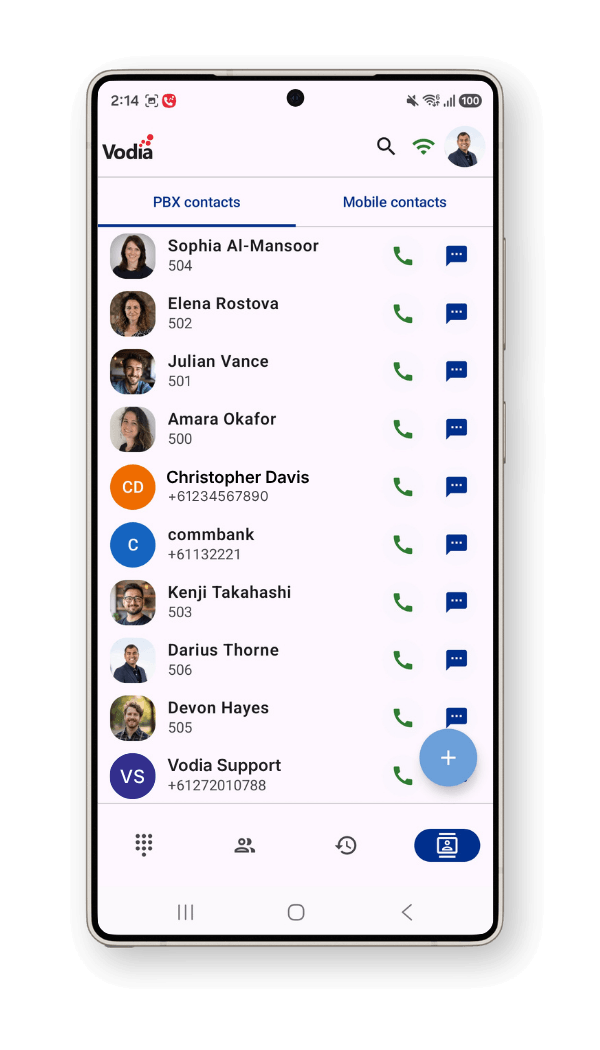
Business and phone contacts
Access contacts from your Vodia PBX address book alongside contacts stored locally on your Android phone.
Keep control when a call needs to move
Hold and resume calls, manage active conversations and choose the right way to hand a caller over. The app brings active and held calls together so users can follow what is happening and take the next action.

Hold and resume
Put calls on hold from the Android dialer or the Vodia app, then return to them from the call screen.

Blind and attended transfer
Transfer a call immediately or speak to the destination before completing the handoff.

Choose the right destination
Transfer to another extension, an external number, a PBX contact or a contact stored on your phone.

Park and pick up calls
Place a call on a shared park orbit so another user can see it and pick it up from their own extension.
Change how calls reach you, wherever you are
Manage important extension and call-routing settings directly from your Android device, without returning to your desk or opening the web portal.

Call forwarding
Forward all calls or set different destinations for busy, unanswered and unregistered calls.

Cell phone routing
Update your cell phone number and control how business calls are redirected to your mobile number when you are away from your desk.

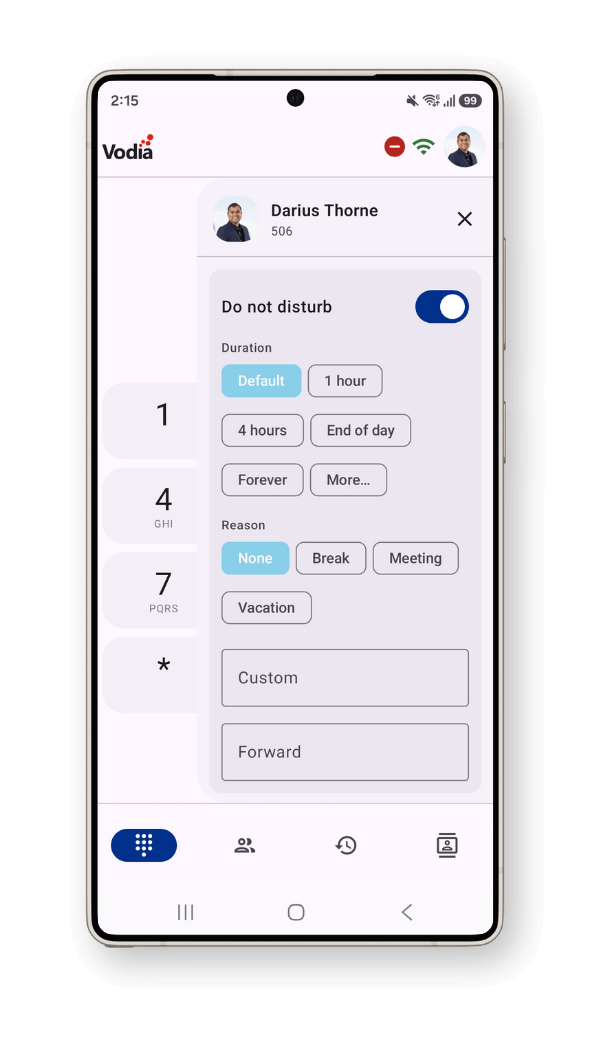
Do Not Disturb
Enable Do Not Disturb, add a reason, choose a duration and set where calls should be forwarded.
Service flags
View and change permitted service flags from the app when your administrator has given you access.
Scan, connect and start calling
Connect the app to your Vodia extension with a QR code from the Vodia user portal. Once the necessary Android permissions are enabled, your business extension is ready to use across Wi-Fi and mobile data.

Download the app
Install the Vodia Android app from Google Play.


Scan your QR code
Open the QR code from your Vodia user portal and scan it from the app.

Enable permissions
Allow calling, audio, nearby-device and notification permissions so native calling and connected devices work correctly.

Start Calling
Choose between 13 languages and start making calls over Wi-Fi and mobile data.
Take your business number wherever work takes you
Make and receive business calls, manage transfers and forwarding, access voicemail and messages, and stay connected to colleagues from your Android device.
Prefer to explore on your own? Launch a prepaid instance on:


